How to grant user access
Follow these step by step instructions to securely grant CLP Advertising access to your social media and Google profiles.
Facebook page access
Use these steps to give our CEO Monty secure access to your Facebook business page.
- Go to your Facebook profile.
- Click your profile picture at the top right.
- Click See all profiles.
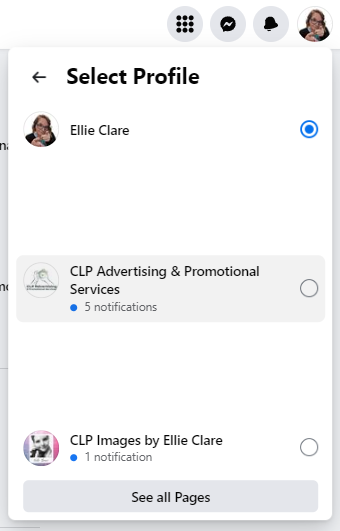
- Select your business page profile.
- Copy and paste this link into your browser bar:
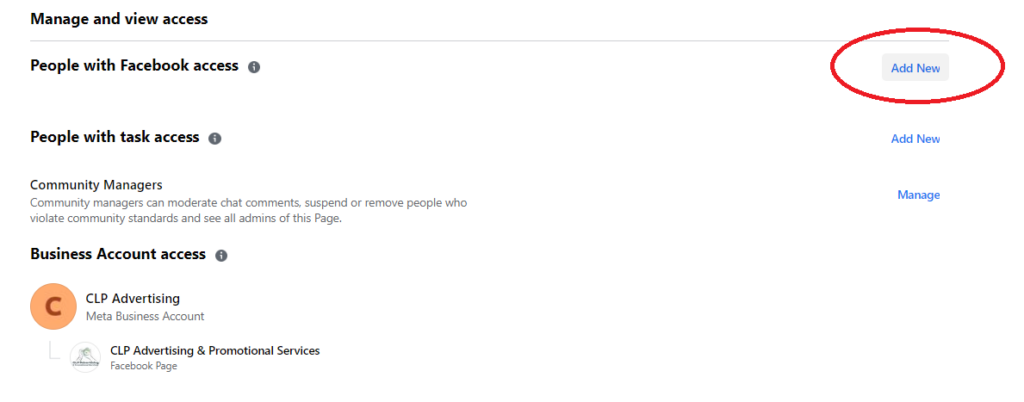
https://www.facebook.com/settings?tab=profile_access - Click Add new next to “People with Facebook access”.
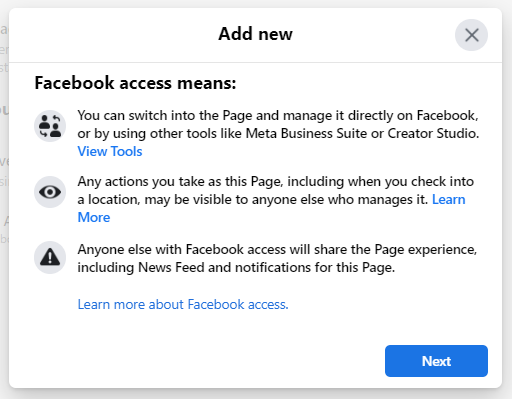
- Click Next.
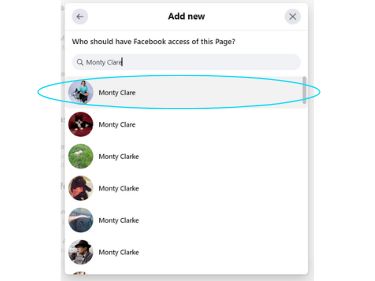
- In the search bar, type Monty Clare and select the profile with the CLP branding.
- Make sure you select only that profile picture.
Tip: If you cannot find the profile from your business page, add Monty as a friend from your personal profile first, then repeat these steps. You can remove the friend connection later. This profile is only used for client access.
Login to Facebook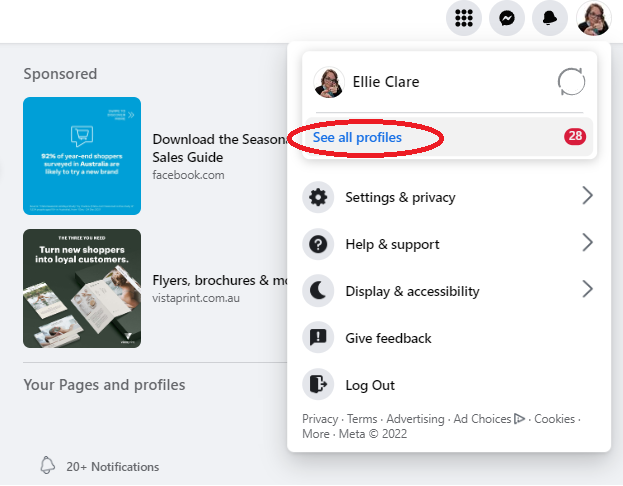
Google Business Profile
These steps show you how to invite CLP as a manager on your Google Business Profile.
- Sign in to your business listing at https://www.google.com/business.
- If you have more than one location, select the correct location.
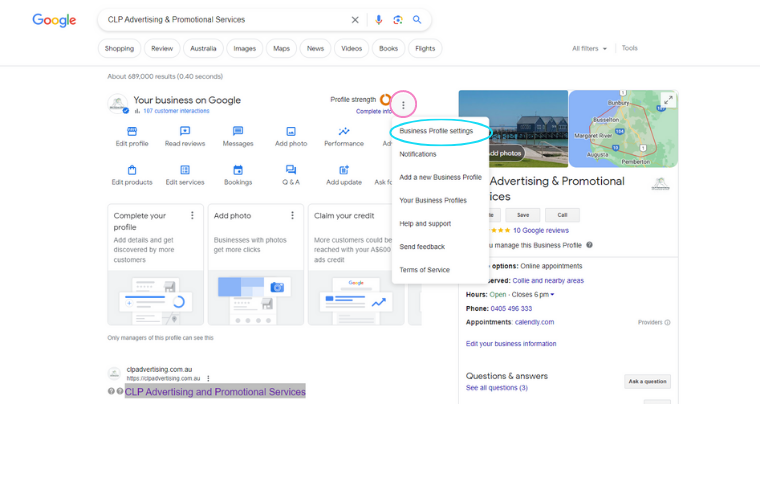
- Click the three dots menu.
- Select Business Profile settings.
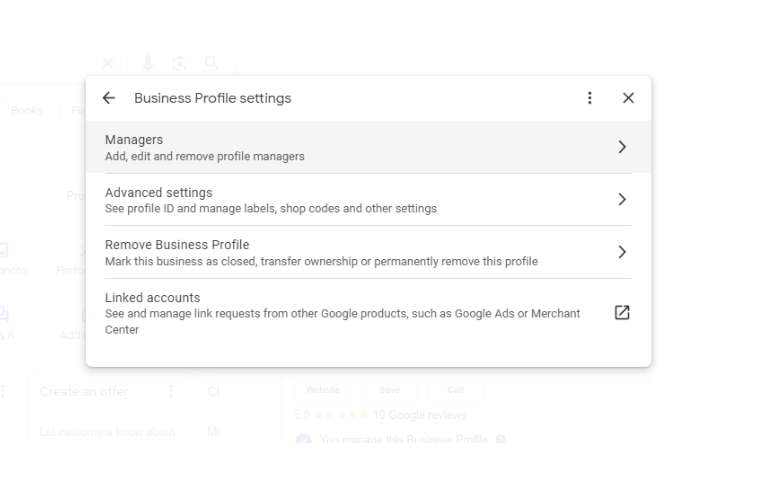
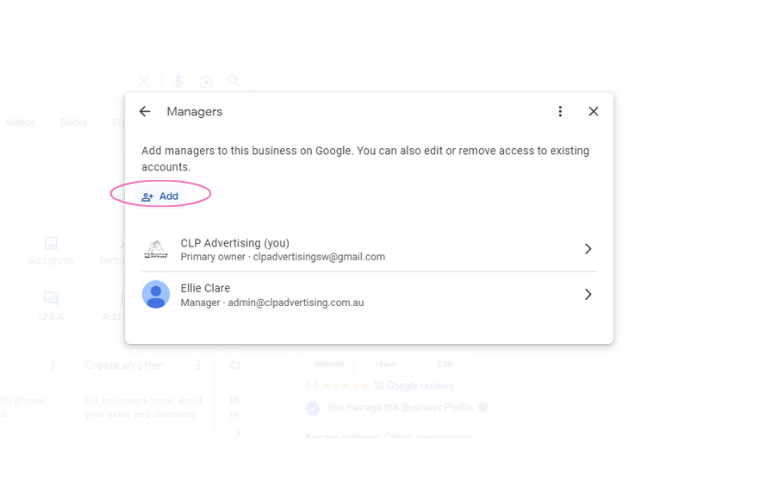
- Click Managers.
- Click Add.
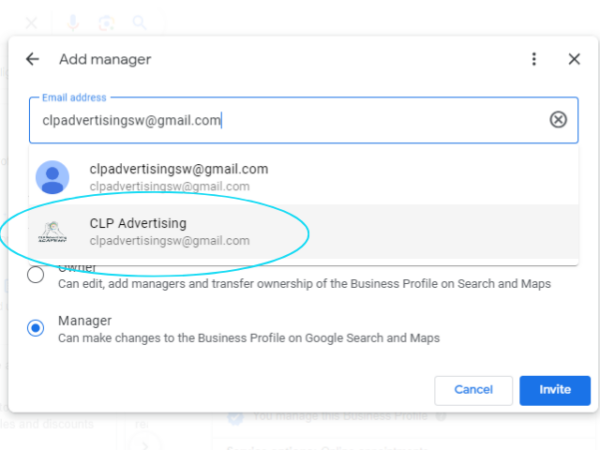
- Type the CLP email address you have been provided and select CLP Advertising.
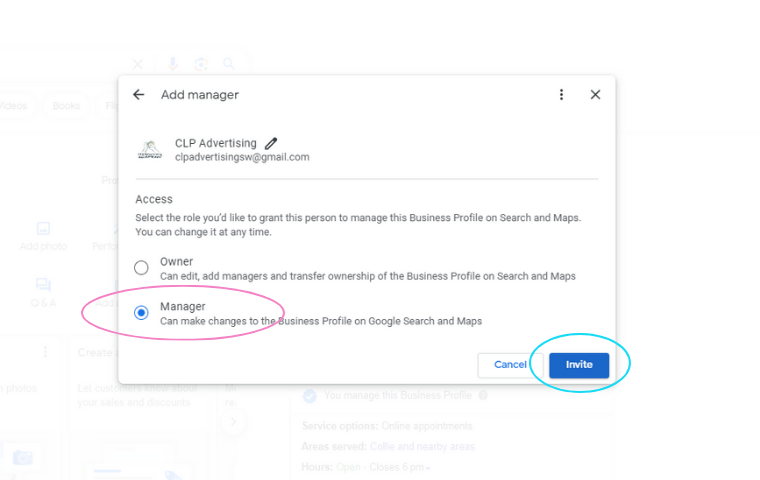
- Set the role to Manager.
- Click Invite.
Note: Ignore any sample email addresses in screenshots. Always use the email address we have supplied in your welcome email or onboarding form.
Login to your Google Business Profile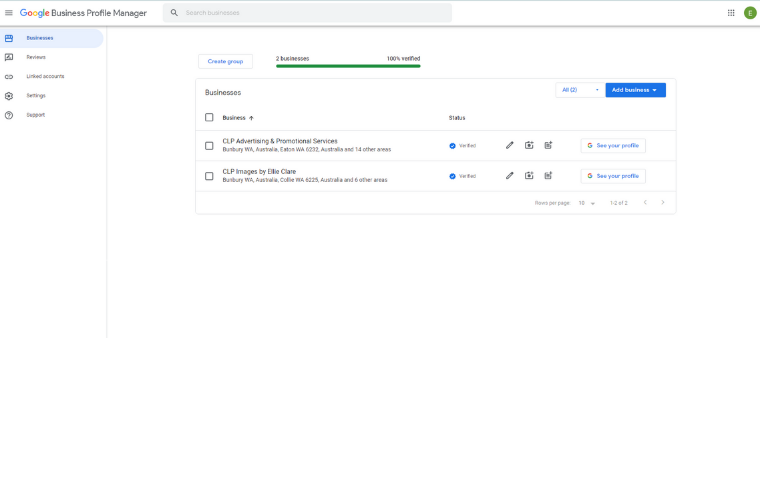
LinkedIn company profile
Give CLP super admin access so we can fully optimise and manage your LinkedIn company page.
- Login to your LinkedIn profile.
- Click the Me dropdown under your profile picture at the top.
- Select your company page under “Manage”.
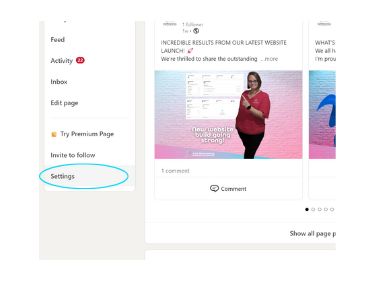
- Scroll down the left sidebar and click Settings.
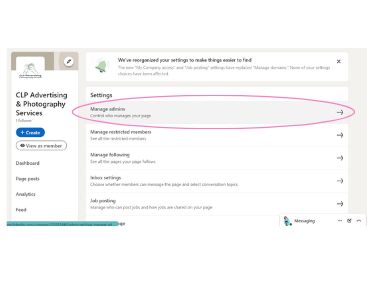
- Click Manage admins.
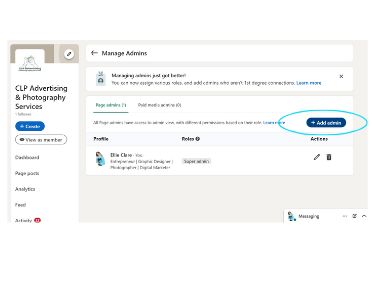
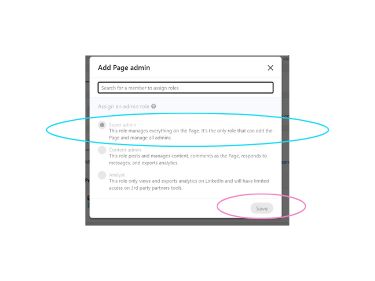
- Click Add admins.
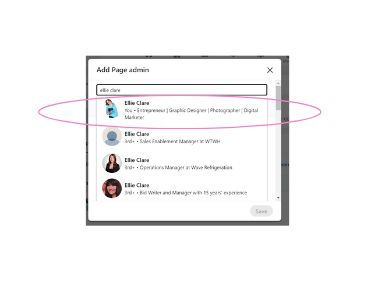
- Type Ellie Clare in the search field and select the CLP profile.
- Set the role to Super admin.
- Click Save.
Tip: Super admin access lets us optimise your page, schedule content and update key details without needing your login.
Login to LinkedIn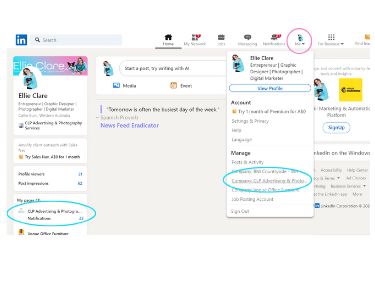
LinkedIn profile access
If you would like us to post directly to your personal profile using our software, we will need the details below.
- Log into your LinkedIn account.
- Click the down arrow under your profile picture at the top middle, labelled Me.
- Click Settings & privacy.
- Select Sign in & security in the left sidebar.
- Here you can:
- Confirm your email address.
- Update your password if needed.
Please note: If you have two step verification turned on, you will need to be available on the phone while we connect your profile. Our posting software can only publish content to your feed. It does not give us access to your messages or other LinkedIn features.
Sign into LinkedIn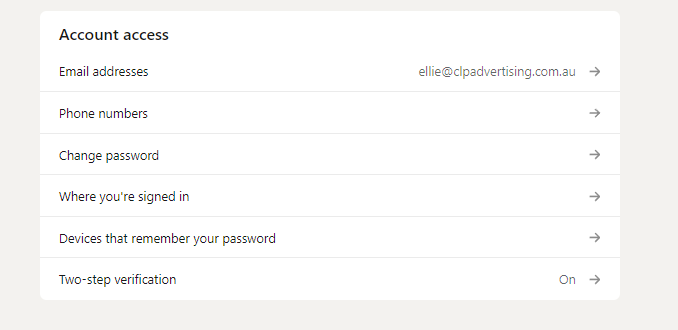
Instagram access
We only use the details below to connect your Instagram account to our posting software.
- Open Instagram and go to your profile.
- Go to Settings.
- Locate your username.
- Confirm the email address linked to the account.
- Update your password if needed.
Tip: For security, choose a password that is long, random and not used anywhere else. Use a mix of letters, numbers and symbols.
Login to Instagram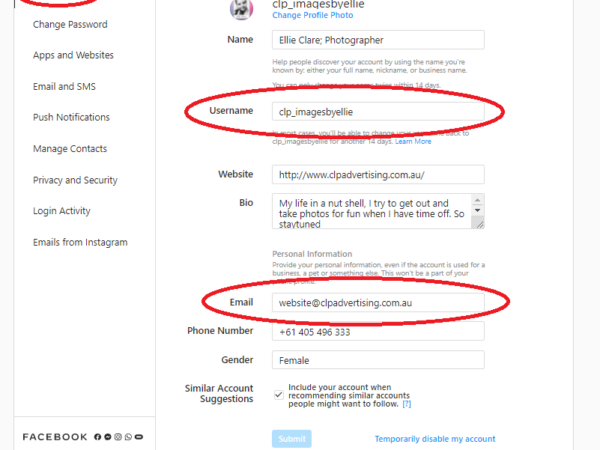
Facebook ad account access
Follow these steps to add Monty as an admin on your Facebook ad account and check your billing details are correct.
- Log in to your Facebook account.
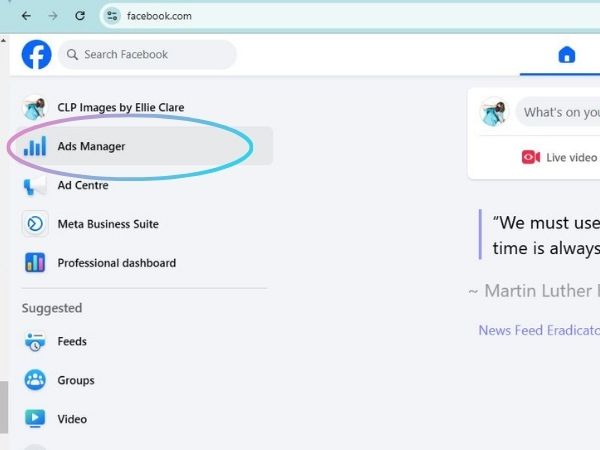
- Open your business page and go to Ads Manager.
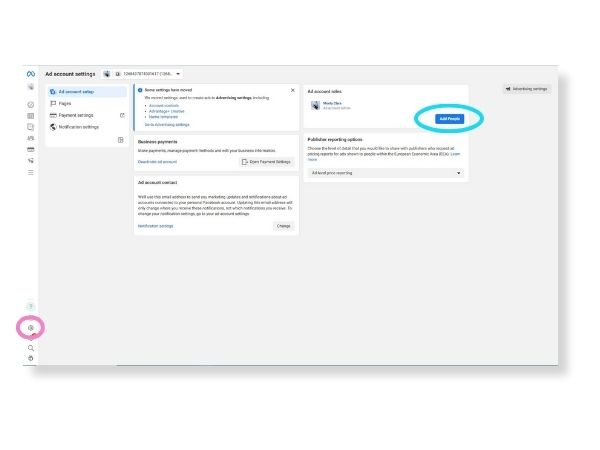
- In the left sidebar, click the Settings cog at the bottom.
- Click Add people.
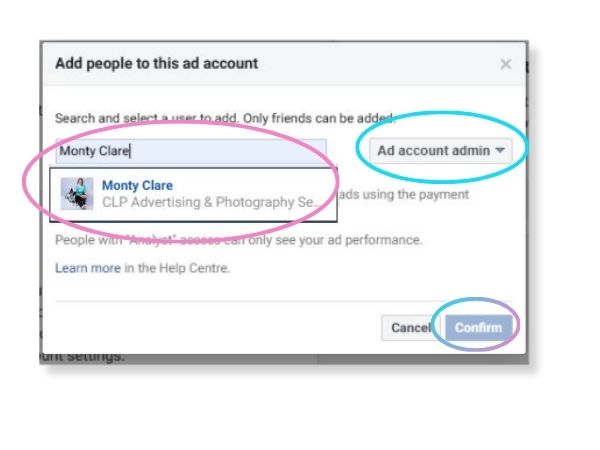
- Type Monty Clare and select the correct profile.
- From the dropdown, select Ad account admin.
- Click Confirm.
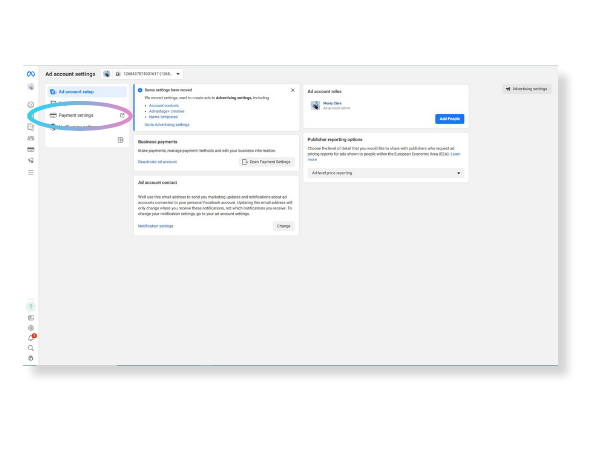
- Go to Payment settings.
- Check that your payment method and billing details are correct and up to date.